The same steps are shown in our full walkthrough video, chapter by chapter. The chapter list is at the end of this guide.
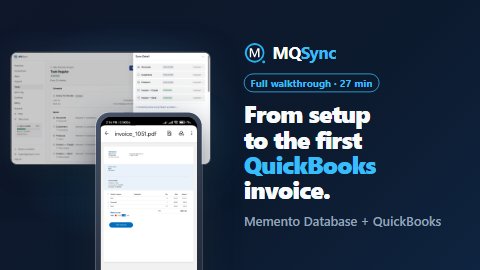 Watch the full walkthrough
From setup to the first invoice · 27 min on YouTube
Before you start
- A QuickBooks Online subscription (US edition). QuickBooks Desktop is not supported.
- Memento Database on an Android phone or tablet (iPhone and iPad work with some limits) and a Memento Pro subscription: the templates use four cloud libraries and several scripts, more than Memento's free plan allows.
- Memento Database on a computer, once, to create an access token.
- An MQSync account. The 7-day trial includes every Business feature and needs no credit card.
Step 1. Import the Memento templates
Download the free MQ Standard template (or Time & Travel, if you bill travel and labor by the hour) from our templates page. In Memento Database, tap Add Library, then Import Template, and pick the downloaded .mlt2 file.
You get four libraries: Accounts, Customers, Items and Work Orders, with every field, color and script MQSync expects already in place. Rename the libraries if you like and add your own fields (photos, notes, checklists). MQSync ignores fields it does not map. Upload all four libraries to the cloud so MQSync can see them.
Step 2. Connect Memento Database
In MQSync, open Connections and add your Memento server.
- Memento Cloud works out of the box. You need an API token: in Memento Database on a computer, open Account, then Access Tokens, and generate a token.
- Memento Private Server (Business and Pro plans): enter the host and port of your server and the same kind of token.
Memento Cloud accepts 10 requests a minute per account. That is plenty for a small business: MQSync paces itself and carries on by itself when it reaches the limit. For large libraries, a Private Server has no limit at all.
Step 3. Connect QuickBooks Online
Still on Connections, choose Connect to QuickBooks, sign in with your Intuit account and pick the company. MQSync uses Intuit's secure OAuth 2.0 connection and never sees your QuickBooks password; you can disconnect at any time.
A QuickBooks sandbox company is a good place to try things first. Every plan, Free included, connects your real company as well.
Step 4. Create a project
A project links one Memento connection, one QuickBooks company and a sync map. Pick the MQSync Standard map: it pairs the template's fields with QuickBooks, and it works for both templates. Then choose your four libraries.
Libraries are set once, when the project is created, so a sync can never start writing into the wrong library.
Step 5. Import your QuickBooks data: Quick Seed or Seed all
Seeding copies your existing QuickBooks chart of accounts, customers and products into Memento, so both sides start from the same picture. You start it yourself, and it is safe to run again: existing records are updated, missing ones added, nothing is duplicated.
- Quick Seed (Memento Cloud) imports a small sample: one customer, two items and the accounts they use. It finishes in about a minute, so you can try the whole flow right away.
- Seed all imports everything: accounts first, then customers, then products. On Memento Cloud it pauses at the request limit and resumes by itself; a hundred records take roughly 10 to 15 minutes.
Invoices are never imported from QuickBooks. They always start in Memento, as work orders.
Step 6. Create a task
A task decides what syncs, in which direction, and when. Add a line for each kind of record: Accounts (from QuickBooks to Memento), Customers and Products (both ways), Invoice create and Invoice send (from Memento to QuickBooks). Then pick a schedule: manual, hourly, every 15 minutes, or on save on the Pro plan.
A setup that works well on Memento Cloud uses two tasks. One syncs customers, products and new invoices every 15 minutes during business hours. The other has QuickBooks email the new invoices once a day, say at 10:00 AM on weekdays.
Step 7. Create your first invoice
- In Memento, create a work order: pick the customer, add items with price and quantity. A white work order is a draft, and MQSync leaves it alone.
- When it is ready to bill, tap Play. Gold means it is queued for MQSync.
- Sync the library with the cloud: pull down on the list of entries.
- On the next task run (or press Run Now), MQSync creates the invoice in QuickBooks. QuickBooks assigns the invoice number, and MQSync writes the number and the invoice PDF back to the work order, which turns green.
- On the send run, QuickBooks emails the invoice to the customer. To hold one back, tap the button next to Play before the send run.
Need a correction? Edit the work order and tap Play again: the same QuickBooks invoice is updated, with a fresh PDF, and no duplicate is created.
If something doesn't show up
MQSync reads your data from the Memento cloud, not from the phone. If a change on the phone doesn't reach QuickBooks, sync the library in the Memento app first: pull down on the list, or open the menu, Cloud, and tap the sync icon, which shows the time of the last sync. Then run the task.